
Customers and quotas
Customers (administrators) manages accounts that own servers.
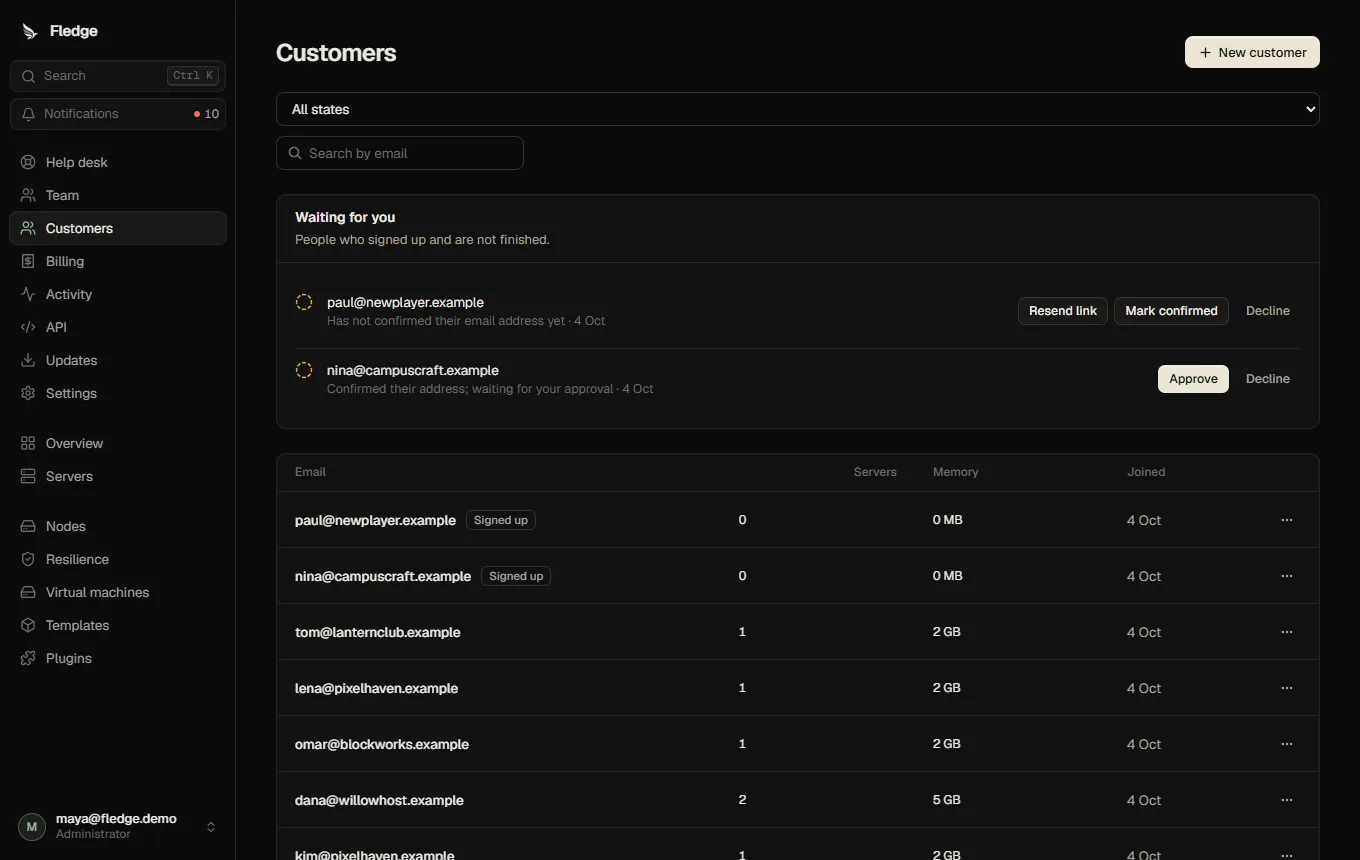
Creating customers
New customer: an email address and, optionally, a password. If you leave the password empty, Fledge shows a temporary password once. With email configured you can instead send an invitation link (valid 7 days) so the customer sets their own password.
Other actions: reset the password (the customer is signed out everywhere and their API tokens are revoked), sign out everywhere, disable or enable the account.
Sign-up, status and plans
With sign-up on, people who create their own account show up here as Signed up or Invited. A Waiting for you card lists those whose email is unconfirmed or who need your approval. The customer's drawer lists their plans and lets you give them one.
Limits (formerly quotas)
Limits are now layered (panel defaults, the customer's plans, and what you set by hand here) and can be switched off or set to warn only; see Limits. Edit limits shows what applies and where each number comes from, and lets you set the customer's own values. The six original fields are unchanged and still stored under the same names:
| Field | Limit on |
|---|---|
maxServers | Number of servers |
maxMemoryMb | Total reserved memory |
maxCpuPercent | Total reserved CPU |
maxDiskMb | Total reserved disk |
maxBackups | Stored backups across their servers |
maxExtraPorts | Extra ports across their servers |
A missing or empty field means no limit. Quotas are enforced when creating, resizing, backing up, adding ports and cloning. The check runs inside the same transaction as the change, so two simultaneous creates cannot both slip under the limit. Errors name what would be exceeded ("2048 MB memory in use, 512 requested").
Administrators can exceed a quota deliberately (the request's force option); customers cannot.
Customers see their own usage (GET /api/limits/me, and the older GET /api/account/usage) in the panel, with where each limit comes from.
What this customer may do
Edit limits also has a What they may do section with switches such as May create servers, May use SFTP and May share servers. Setting May create servers to Yes gives this one customer the New server button (in every mode except Off); No takes it away whatever their plans say. How the switches, plans and panel modes fit together is explained in Customer permissions.
Collaborators
A customer (or an administrator) can invite another customer to a single server with chosen permissions on the server's Access tab. Collaborators need an existing customer account.
Suspension and blocked sign-in
Suspend account opens the explained pause and appeal flow. Block sign-in is the separate hard lock; it does not stop servers. See Account suspension. Customer creation and limits need customers.edit, suspension needs customers.suspend, password and device operations need customers.security, and deletion needs customers.delete.