
The store
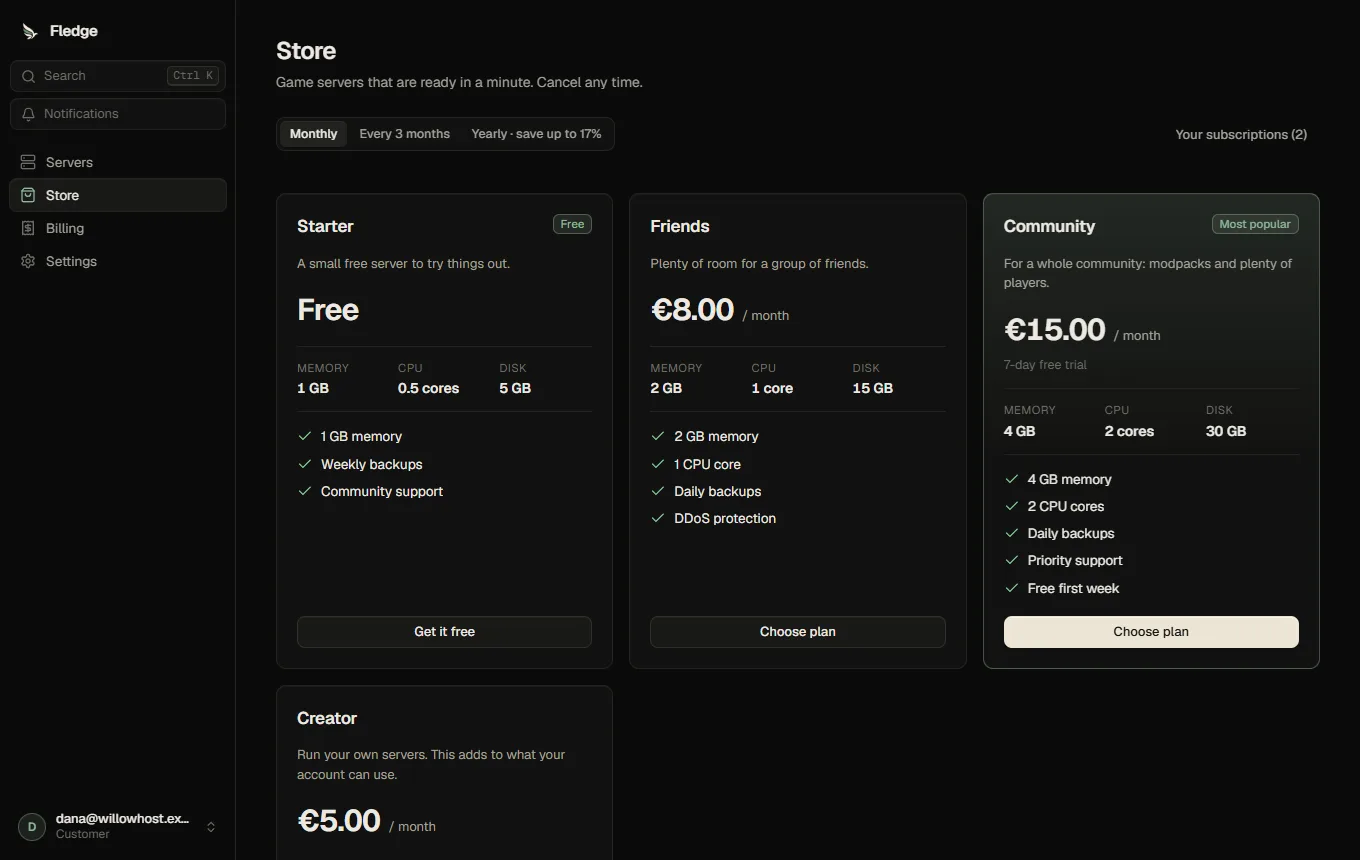
The store lets customers buy plans themselves. It is closed by default and opens only when everything it needs works.
Opening it
You need, in this order:
- A payment provider. The Stripe plugin is included; install it under Plugins, enter its keys and choose it in Settings → Billing.
- Working email (receipts and reminders).
- At least one plan with a price.
- Your terms and privacy addresses (when terms are required).
Billing → Overview shows a checklist of exactly these (plus helpful extras: your company details and a payment event received by the panel). The switch Open the store in Settings → Store refuses with a clear message until the required items are done.
Settings
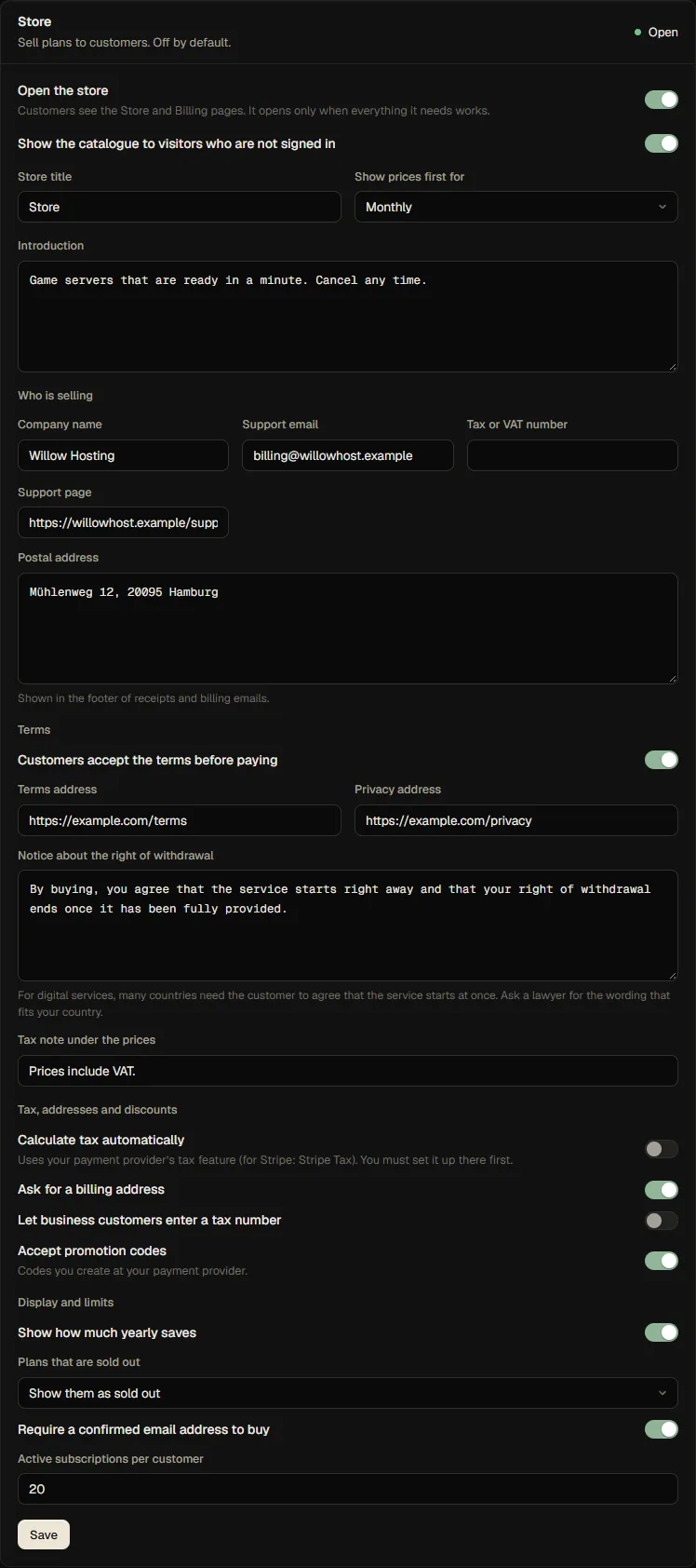
| Setting | Notes |
|---|---|
| Open the store | Customers see Store and Billing in the sidebar |
| Show the catalogue to visitors | The plans can be browsed without signing in; buying needs an account |
| Title, introduction, first interval | Words and which interval's prices are shown first |
| Who is selling | Company name, support email, tax number, support page and postal address: shown on receipts and in the footer of billing emails |
| Terms | Customers tick a box that links your terms and privacy pages, and sees your withdrawal notice and tax note |
| Tax, addresses and discounts | Automatic tax (your provider's tax feature), billing address, tax number for businesses, promotion codes |
| Display | Show yearly savings; hide or show sold-out plans; require a confirmed email; subscriptions per customer |
The store's words follow your Appearance: you can rename the Store and Billing pages there.
What a customer does
- Browses the plans, switches the interval, opens Choose plan.
- Names the server, picks a location and any settings you allowed, sees the total (including setup fee and trial), ticks the terms.
- Continue to payment goes to the provider's own page. Card details never reach the panel.
- After paying, the customer returns to a page that waits until the payment is confirmed and the server exists, then links to it. If the server cannot be created right away, the page says so and an email follows when it is ready (see Billing).
- Billing shows the subscription, the server, invoices, the payment method (through the provider's page), and lets the customer change plan or cancel.
Free plans skip step 3. They are claimed at once, also when the store is closed but self-service is on.
What you control
- Prices and what is sold: only the plan id and interval come from the browser. The amount, currency and trial are read from your database at checkout and frozen on the order. Changing the page or the request cannot lower a price.
- Stock, per-customer maximums, a maximum number of subscriptions per customer, and a limit of five checkouts per customer and hour (change it).
- Whether customers may cancel, resume, change plan or move to a smaller plan.
Tax and legal
Fledge does not calculate tax. If your provider offers it (Stripe Tax), switch on Calculate tax automatically after setting it up there. Invoices are the provider's hosted invoices. You are responsible for tax, consumer protection (such as withdrawal rights for digital services), invoicing rules and your terms in the countries you sell to. The withdrawal notice field exists because many countries need the customer to agree that a digital service starts immediately; ask someone qualified for the right wording.
API
GET /api/store, GET /api/store/public, POST /api/store/checkout, GET /api/store/orders/:id. See the API reference.